
Tue. Jan 27th, 2026

Have you ever had the problem of recording a video for a long time, only to find that the audio is full of noise? Don’t worry, you’re definitely not alone. Many people face the same issue. What you need is an easy and quick way to remove that unwanted background noise from your video or audio. Thanks to today’s technology, you can easily fix this using video editing software like Wondershare Filmora.

Wondershare Filmora, especially version 14.5.20, has a feature called “AI Voice Enhancer.” We tested it by removing noise from several videos and audios, and the results were pretty good. With some patience, you can edit your videos and get clear audio with no background noise. Want to know how? Keep reading!

Causes of Noisy Video

The main reason why videos have noise is due to the environment and conditions when recording. For example, recording in a crowded place or during strong wind or rain can cause noise. Also, if you’re using software that’s not great or hardware like a bad microphone, that can cause problems too.

Sometimes, noisy sounds come from things like breathing or snoring, which can make your video sound unprofessional.

These problems can be fixed by editing your videos with Wondershare Filmora. Here’s how to do it:

How to Remove Background Noise from Video Audio

  • First, you’ll need Wondershare Filmora (version 14.5.20). If you don’t have it yet, you can download it here. You’ll need a license to avoid a watermark on your video.

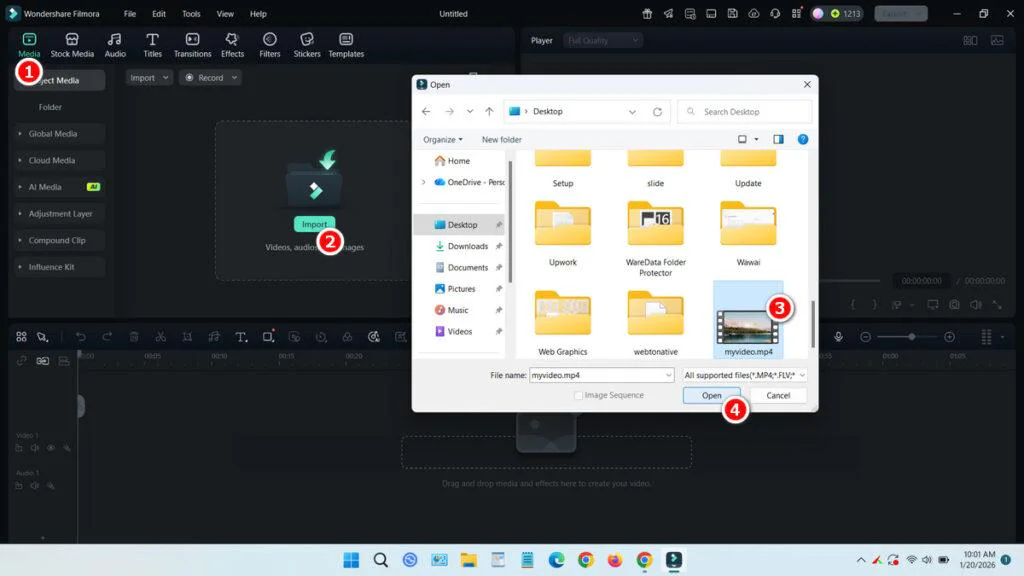
  • Open Wondershare Filmora, add your video to the media, and drag it to the timeline.

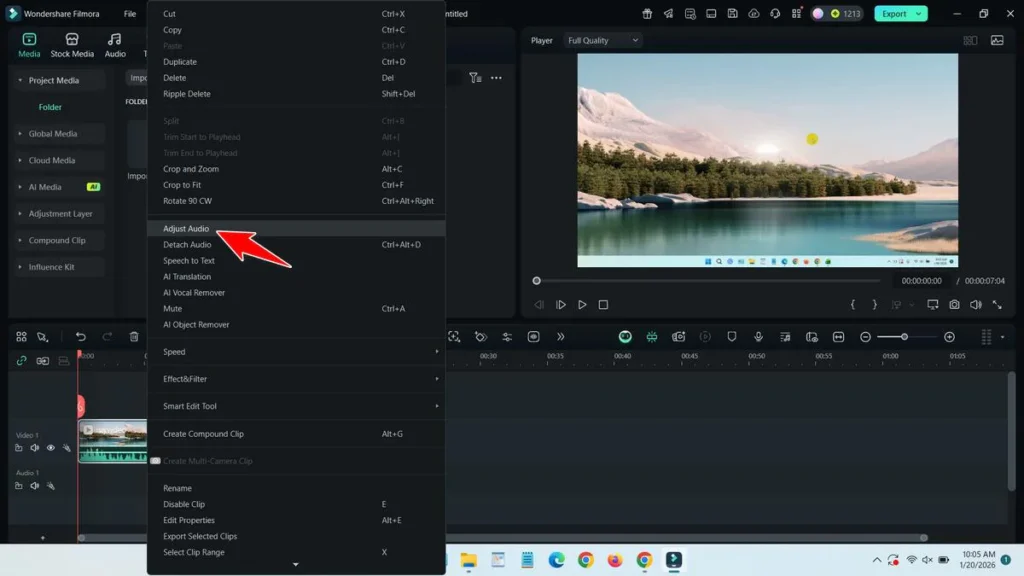
  • Right-click on the video in the timeline and choose “Adjust Audio.”

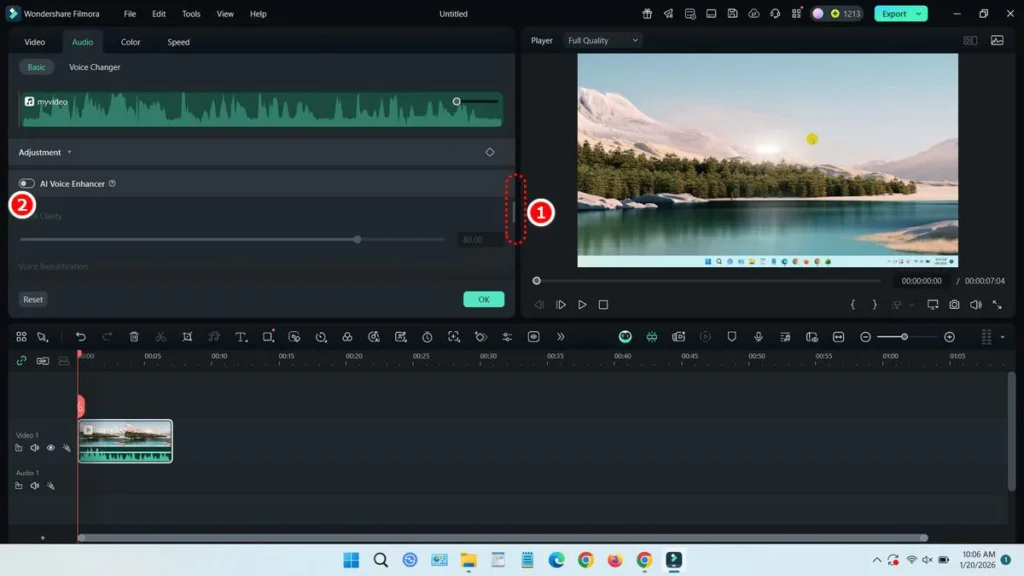
  • Scroll down and find the ‘AI Voice Enhancer’ option.

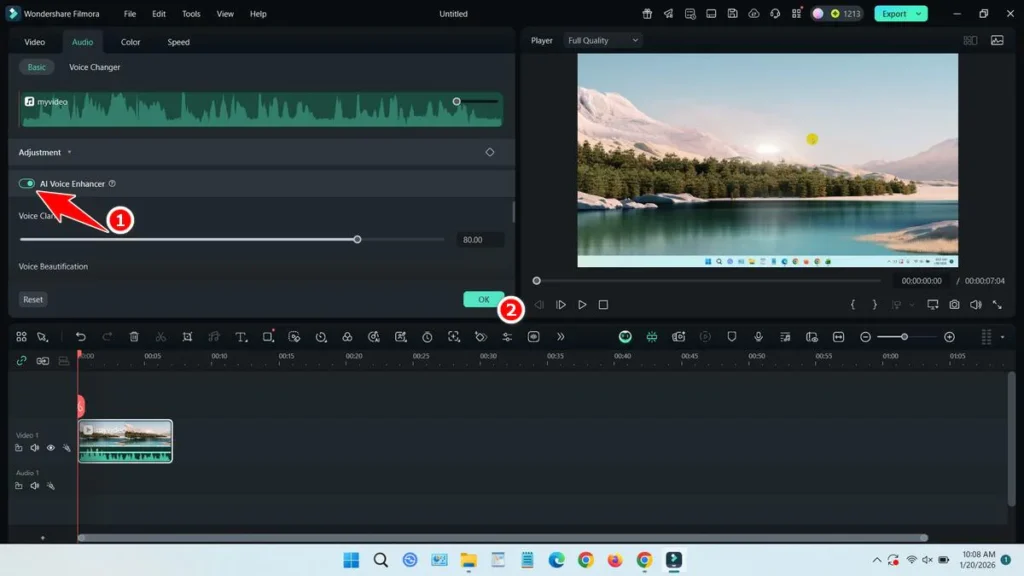
  • Turn on the ‘AI Voice Enhancer’ option and click OK.

    • Listen to the audio from your video again. Is it clear? If not, the easiest way is to export the video first, then repeat these steps with the exported video. This should make the audio much clearer.

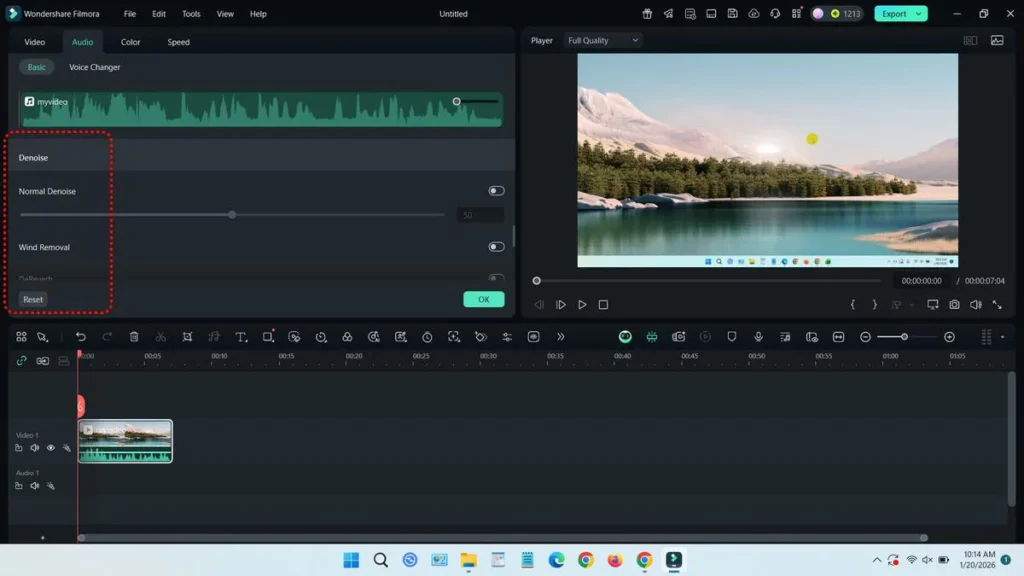
    • If the video is still noisy after two tries, try adjusting other settings below the “AI Voice Enhancer” option. You can change settings like Denoise, Wind Removal, Hum Removal, and Hiss Removal.

If you are looking for the Brother QL-710W Printer Driver and how to install it, click here.

    • Before exporting your final video, play it from the timeline to check if everything sounds good.

Guide Video

If you’re still confused about how to do it, we’ve made a tutorial video that you can watch on our YouTube channel.

Maybe you would like other interesting articles?

GTA vi release date

Grand Theft Auto VI, also called GTA VI, is one of the most awaited games in the world. Fans have been waiting for many years.

Read More »

Leave a Reply

Your email address will not be published. Required fields are marked *